




Software Development
Technology
Computer Science
Docker In Action
In this section of my Docker series, I’m going to work through a typical development workflow. Please don’t try to memorize anything in this blog, because all I want you to see is the big picture. So I’m going to create a folder called hello-docker in my Desktop directory, inside that folder, I will create two files:
1. app.js
2. Dockerfile
NOTE: The Dockerfile has to be written that way.
Inside the app.js you can write a simple program like console.log(“Getting started with DOCKER!”’)
Here comes the fun part, inside the Dockerfile, we will write the commands for packaging up our application:
1. FROM node: alpine
2. COPY . /app
3. WORKDIR /app
4. CMD node app.js
COMMANDS EXPLANATION:
FROM: Set the name of the base image to use. This base image has a bunch of files and we are going to add some files to it. This is like inheritance in programming. A Docker image is a file used to execute code in a Docker container. A base image is an image that is used to create all of your container images. There are different types of images, and they can be found on the Docker Hub. Docker Hub is a registry for Docker images. So we started with a node image node: alpine. The : alpine tells the Linux distribution we are using.
COPY: The copy command copies our program files into the /app directory in the image file system.
WORKDIR: Specifies our current working directory.
CMD: This tells the command that will be executed i.e node app.js.
This instruction clearly documents our deployment process. Now we go to the terminal and tell Docker to package up our application by running the command: “docker build -t hello-docker .”
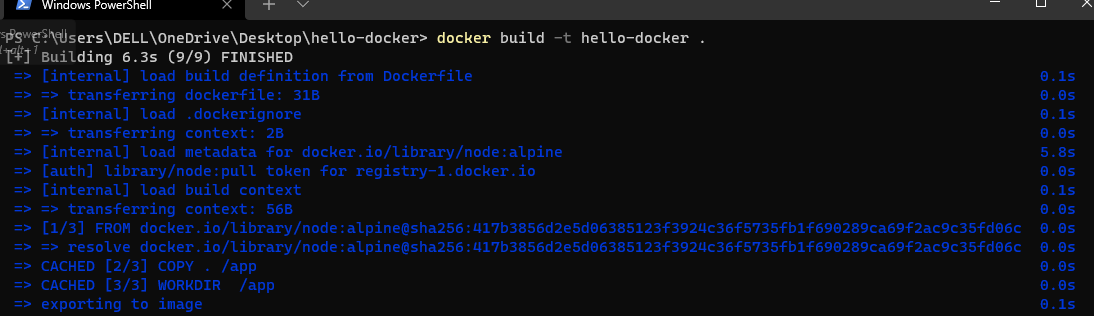
The -t in the command represents the tag to identify our image. Hello-docker is the name of our tag and the period “.” tells docker where to find a Dockerfile. Now you might be expecting an image file inside the current directory, but if you check your current directory you won’t find any additional file because the image is not stored there, and in fact an image is not a single file. How Docker stores this image is very complex, but we don’t have to worry about it. To check all the images on your computer, run the command “docler images” or “docker image ls”.
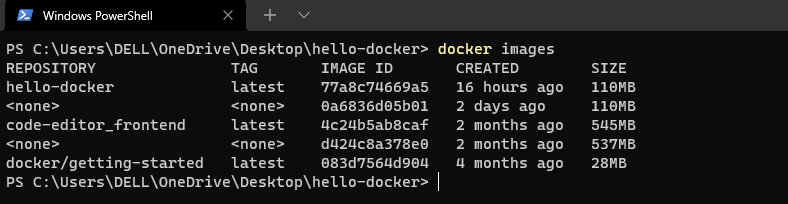
On my machine, I have five docker images, but the one I am currently working with is the hello-docker.

The image that we built have the following:
1. Hello-docker repository
2. Tag “latest” is added by docker by default. I will discuss more about that later, but basically we use it for versioning of our images.
3. Each image has a unique identifier “IMAGE ID”.
4. When the image was created “CREATED”.
5. The size of the image “SIZE”.
So we have built this image, now we can run it on any computer running docker. So on your machine you can run the image by executing the command “docker run hello-docker”

NOTE: “hello-docker” is the name of the image. As you can see the message of our simple program is printed in the terminal. So we can take any application and dockerize it by adding a Dockerfile to it. This Dockerfile contains instructions for packaging an application into an image. Once we have an image, we can run it virtually anywhere with any machine with docker.
So this is a typical development workflow to apply when using docker, but this is on a very minimal level. As you follow on this journey, we will get to work with Docker on a very high level. The next section of my docker series will be on the Linux command line.
If you do find the content useful please share it so others can gain knowledge of what docker is.
You can follow me for more interesting topics and drop a like if you found this content valuable and informative.
Have a nice day!

Friday, Oct 15, 2021